
Google Business Profile for Service-Area Businesses: Setup Checklist

If you run a Google Business Profile service area business, your customers never need to visit you. Plumbers, electricians, consultants, mobile therapists and software and web agencies all travel to customers or work remotely, often from home.
For these businesses a Google Business Profile still matters, but it needs to be set up differently from a shop.
This checklist explains how to set up a Google Business Profile for a service area business. It also covers how to protect your privacy, reach potential customers and avoid the common mistakes.
What is a service area business on Google?
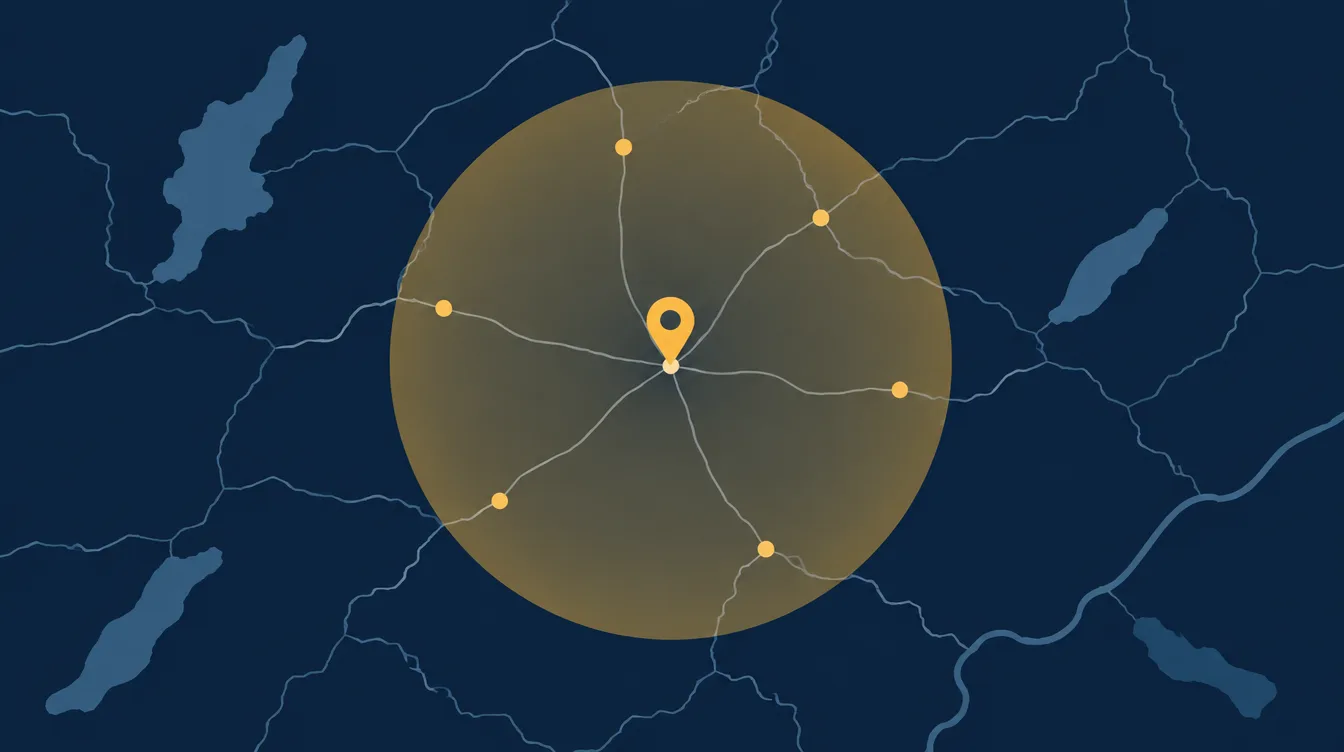
A service area business serves customers at their location or remotely, rather than at a public premises. Google lets these businesses hide their street address and show the areas they serve instead.
That protects privacy, especially if you work from home. Customers can still find you on Google Maps and in search.
We work this way ourselves at Athenium. We serve clients at their location or remotely, so our own listing hides our address.
Service area business, storefront or hybrid business?
Google treats three kinds of business differently:
- Storefront: customers visit your physical location, such as a shop, a cafe or a clinic. The address is shown on the profile.
- Service area business: you go to customers, or serve them remotely, and have no public premises. The address can be hidden and your service areas are shown instead.
- Hybrid business: you have a physical location that customers visit and you also travel to customers, for example a garage that also offers mobile repairs. A hybrid business can show its address and list service areas.
Choose the one that honestly describes how you work, because the choice controls what customers see.
Step 1: Set up your Google Business Profile and choose “I deliver goods and services to my customers”
When you create the business profile, Google asks if customers visit your location. If they do not, say so, and choose to hide your address.
You may still be asked for a business address during verification, but it does not have to be shown publicly.
Do not use a post office box or a virtual office, because Google does not accept them as a physical location for this type of profile.

Step 2: Add your service areas and choose your business profile categories
Add the towns, cities or regions you actually serve. Google lets you list a limited number of areas, so choose the places you genuinely work in rather than listing everywhere.
A metropolitan area or a county is fine if it reflects where you go, but avoid long lists of towns you do not serve.
Use the same areas on your website so the information matches, and consider a page for each main area.
Your main category matters most, so choose the one that best describes your core service.
Add a few secondary categories for other things you do, but avoid adding categories that do not apply. Categories help Google decide which searches to show you for.

Step 3: Complete your Google Business Profile listing and keep it consistent
A complete listing gives users the confidence to get in touch. Fill in every section you can:
- Business name exactly as it appears on your signage, invoices and website, with no extra keywords added.
- Phone number and website.
- Opening hours that match when you really answer.
- A clear business description that explains what you do and who for.
- Services, with short descriptions of each.
- Photos of your work, your team and your branding.


Then keep the details consistent everywhere. Use the same name, phone number and website on Facebook, Bing Places, Apple Business Connect and any directories.
If you hide your address on Google, hide it on the others too.
This consistency helps search engines trust your information and helps customers contact the right number.

Step 4: Collect reviews, post updates and measure Google results
Ask satisfied customers for reviews using your direct review link. Reply to every review, thank people and handle problems politely.
Follow Google's guidelines. Use the support options Google offers if you receive a review that breaks its rules, do not offer rewards for reviews, and do not only ask customers you expect to be positive.

Use posts to share recent work, guides and offers, and link each post to a relevant page on your website.

Check your profile insights to see how many people found you, called you or visited your site. Use that information to decide what to improve.
Common mistakes with a Google Business Profile
- Using a PO box or a virtual office as your address.
- Adding keywords to your business name.
- Listing every town in the country as a service area.
- Leaving the address public on one platform and hidden on another.
- Choosing the wrong business type, then wondering why the address is showing or hidden.
- Ignoring reviews.

Frequently asked questions
Will customers see my home address?
Not if you choose to hide it. Your service areas are shown instead.
Can I still rank in towns I do not have an office in?
Service area businesses can appear in the areas they serve, but Google tends to favour businesses close to the searcher.
A website with good pages for each town helps.
Do I need a website as well?
Yes. Your profile gives you visibility on Google Maps, but your website explains your services in detail and gives customers a way to enquire.
They work best together.
Our local SEO service includes setting up and optimising your profile, and we cover businesses across Lincolnshire and the Humber.
For a wider plan, read our 30-day local SEO plan for service businesses.
Need your profile set up properly?
We can set up and optimise your Google Business Profile as part of our local SEO service.